Control OBS from your wrist.
OBS Deck turns your Apple Watch, iPhone and iPad into a control surface for OBS Studio. Switch scenes, start recording and streaming, mute inputs and run whole sequences with a tap.
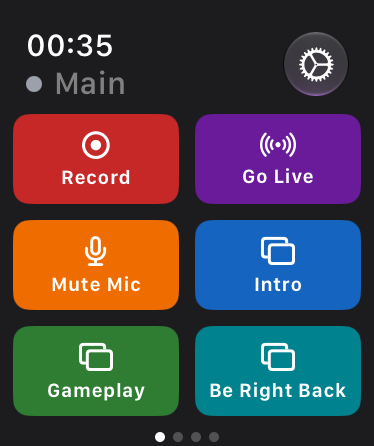
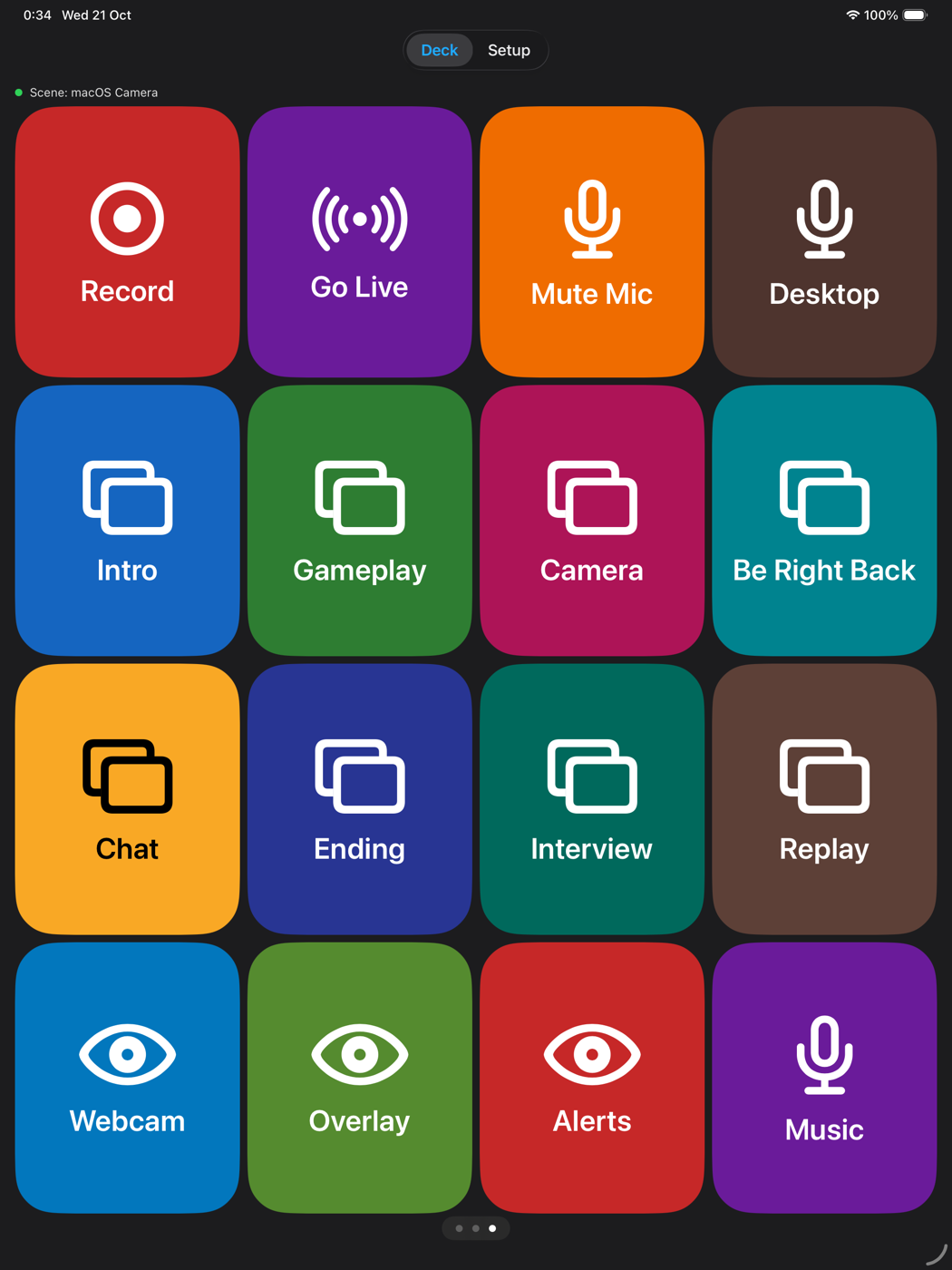
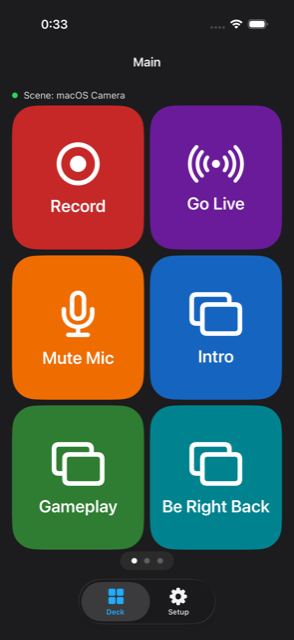
Everything a stream deck does, in your pocket.
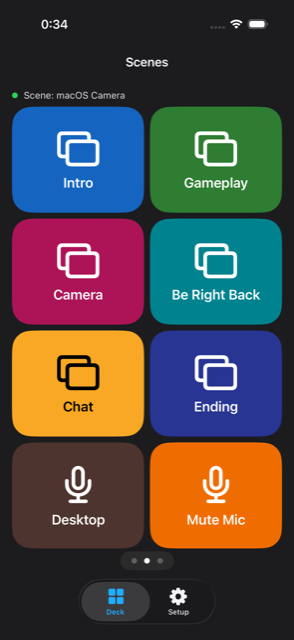
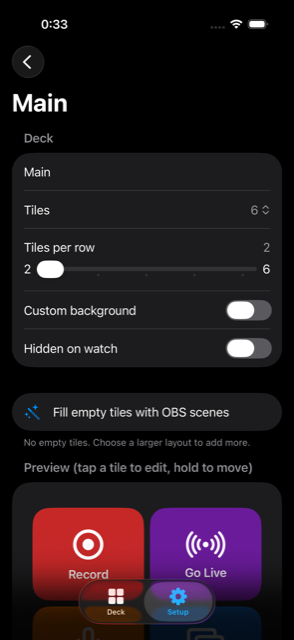
Decks are grids of tiles. Every tile is an OBS action, with your own label, icon and colour.
Apple Watch, directly to OBS
The watch talks to OBS over its own Wi‑Fi, even with the iPhone nearby, and shows the live REC and LIVE state on a complication.
Decks up to 32 tiles
From a single big button to a 6-across grid on the iPad. Reorder tiles by dragging, page between decks with a swipe.
Every OBS action
Scenes, recording, streaming, mute, source visibility, hotkeys, volume faders and multi-step sequences from one tile.
Lock Screen and widgets
A Live Activity on the Lock Screen and in the Dynamic Island, a Home Screen widget with REC and LIVE buttons, and a watch complication.
Profiles
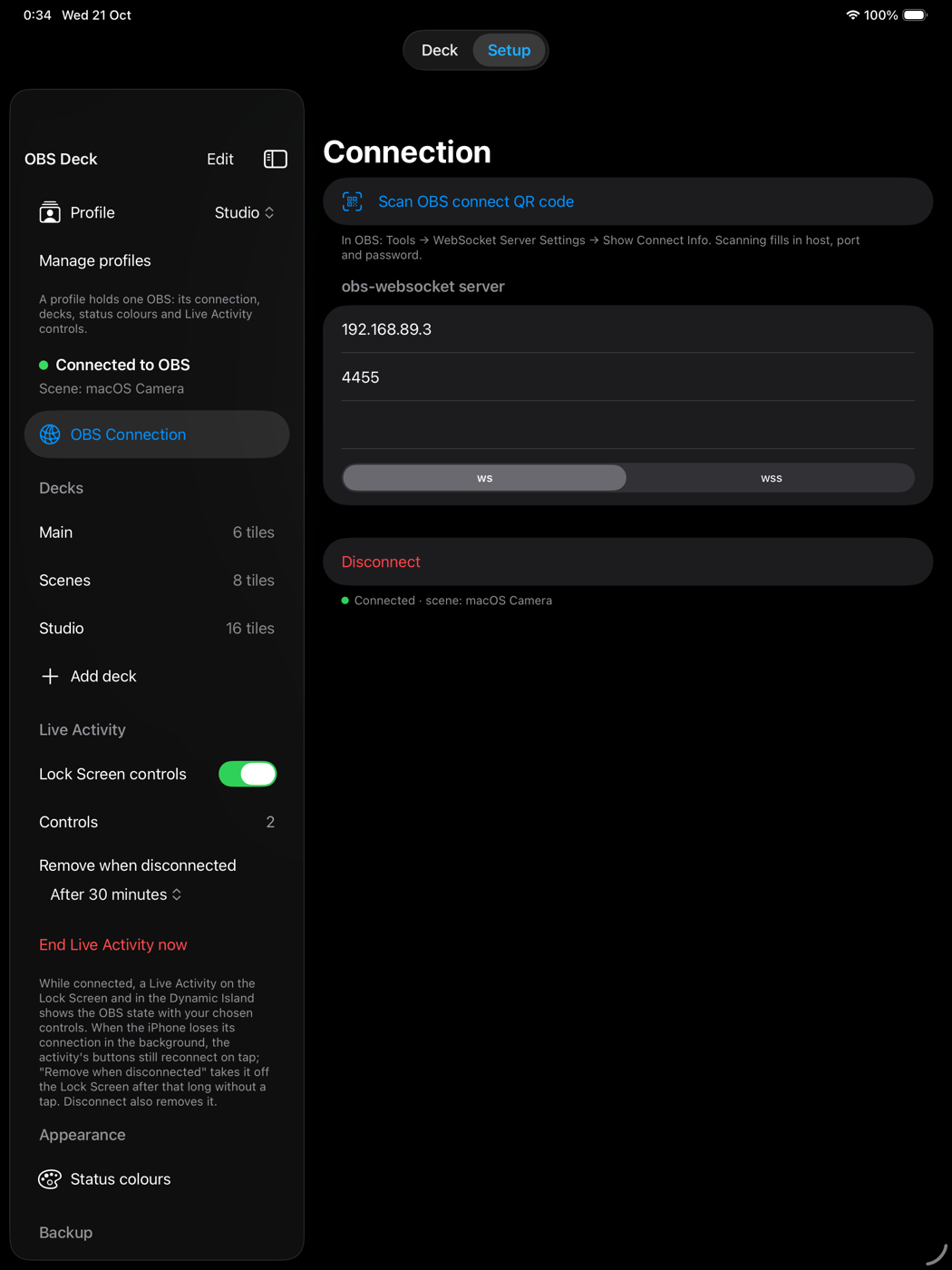
One profile per OBS, each with its own connection, decks and colours. Switch with a tap, or ask Siri.
Shortcuts and Siri
“Run Go Live in OBS Deck.” Every tile and every profile is available to Shortcuts, Siri and the Apple Watch Ultra Action button.
Backups in iCloud
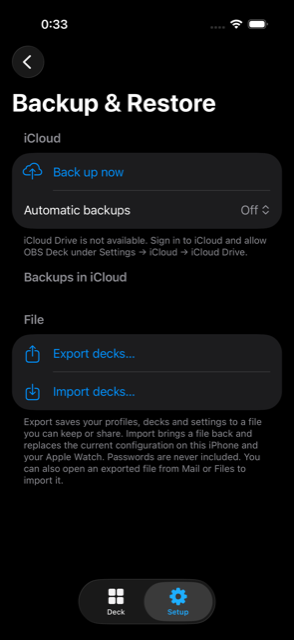
Back up on demand or on a schedule and restore on any of your devices. Export and import as a file, too.
Secure connections
Plain or TLS WebSocket connections, IPv4, IPv6 or a host name, and passwords kept in the keychain, never in a backup.
Screenshots
Captured from the app as shipped.
Up and running in a minute.
Enable the WebSocket server in OBS
Tools → WebSocket Server Settings → Enable WebSocket server. It's built into OBS Studio 28 and later.
Scan the connect code
Show Connect Info in OBS and scan its QR code from OBS Deck. Host, port and password fill in themselves.
Build a deck
Add tiles, or fill a deck with your OBS scenes in one tap. The watch receives it automatically.
Requirements
iPhone and iPad
iOS 17 or later. The Home Screen widget and the watch's Smart Stack view need iOS 18.
Apple Watch
watchOS 10 or later, paired with an iPhone. The watch and OBS need to share a Wi‑Fi network for direct control.
OBS Studio
Version 28 or later with the WebSocket server enabled, reachable from your devices.